How to increase your PC speed- Hi friends, today I am telling you about how to increase your PC speed. Have you think ever how your PC speed is goes to decreases. Because when you open any documents then the PC save also a copy of this document. And when the more copy document is save in our PC then its speed is decrease.
Tampilkan postingan dengan label computer tips. Tampilkan semua postingan
Kamis, 10 Januari 2013
Rabu, 19 Desember 2012

How to restore your Computer
Adam Riley
04.46
In this blog post I am telling you about how to restore your computer or PC. Before start this trick I tell you about what is use of restore point in any computer, we know that when we delete some application or software from our computer then the data is goes to a memory of the computer and save in it and in this time a restore point is add to our computer. Now when we need it again then we can restore it from our computer by restore process. And it is also used to getting back from any virus and our problems of software and computer. So lets start to do this trick.First of all open your pc and click to start button.
Now click to all programs and then accessories and then click to system tools.
So that you finds there a system restore button, now click on it.
After that a system restore page is open.
Now click to “Restore my computer to an earlier time” and then click to next.
Now you can choose a restore point from when you want to restore your computer. So click to a date and then click to next.
Now check the restore date and save your data and close any open programs and click to next.
Then your computer being shut down and then you get a restore screen in your computer.
Now when your computer is open then clicks to finish.
Now you have successfully restored your computer with some old data.
Minggu, 09 Desember 2012

How to save movie maker project to other video formats
Adam Riley
01.49
We know that Microsoft Windows is a leading software company in the world of computer software and today I tell you about it are an application “Windows Moviemaker”. It is an application in which we can make a video file or a video films project, it means if we want to make a video film by our some photos with some videos and music then we will edit and make a film by this application. So we can completely say it “A Video Editing Software or Application”. So let’s come to the main point that is “How to save a moviemaker project to other video format”, because the moviemaker video file format is “MSWMM” and we can’t see this video format in the DVD or CD disk drive and we can’t play it without moviemaker application. So today I tell you about a solution of this video format to save it in the other formats.So first of all open the Windows Moviemaker application on your PC.
After that make any movie with some effects, videos, photos, and music in it.
Now click to “file” button on menu bar and choose “Save Movie File or simply press CTRL+P” and click on it.
Now a Save Movie wizard dialogue box is open in which you can choose as preferred location for you, simply choose the location My Computer and click to next.
Now you can change your movie name in it and choose any place where you want to save this movie, like desktop, my documents, my computer drives and others and then click to next.
Now here you can change the video formats for your movie on drop down menu of the other setting and click to next.
Now you can reach to ending point and your movie is saving to your location and place. After saving the movie click to finish and check your movie file.
I hope you are satisfied with this tips and enjoy this trick.
Rabu, 28 November 2012

How to send email to multiple recipients without disclosing their email addresses
Adam Riley
03.14

Hi everyone today I telling you about a trick to send an email message to multiple recipients without disclosing their email address. Because if we want to send an email to many person and also do not want to sending their email addresses to everyone, but if we didn’t know about this trick then we send trick to solve this problem and understand about how to send an email to many recipients without showing their email addresses and it also take my less time, so today in this blog post I will share this trick with you. Let’s start to do this.
First of all open Microsoft outlook in your PC.
Then optimize it with your email address and click to send and received. After that your email will come in Microsoft outlook, and now you can send and receiving email by it. After doing this when you want to send email message to many recipients then open a new email message and make your mail in it now write on To: your email address, and click to add recipients tab on menu bar, now write the many email address in “BCC” option and send email. After that check your email in your inbox, you find there no recipient will be disclose to anyone.
And I also tell you about “CC” and “BCC”. “CC” means Carbon-copy in which you can send the email to many recipients but it also show all the email addresses to recipients and “BCC” means Blind Carbon-copy in which you can send the emails to many recipients without disclosing any of their email addresses.
So enjoy this easy trick.
Minggu, 25 November 2012

How to remove background of any image in Photoshop
Adam Riley
06.39
We know that Photoshop is image editing software by adobe, in which we can edit, animate, and change the image effects. So today I tell you about how to remove background of an image in Photoshop with a easy trick. So let’s start to do this.
First of all open the Photoshop application in your PC, and then click to file option on menu bar and click to open and open any image file for change its background.
Now press CTRL+ALT+X key and you get an extract menu on this,
now click to edge highlighter tool and highlight the edge of the image by this tool also giving in above image.
And then click to “area fill button or fill tool” and fill this into the image.
Then click to Ok button.
Now you find the image without background. So enjoy this easy trick.
First of all open the Photoshop application in your PC, and then click to file option on menu bar and click to open and open any image file for change its background.
Now press CTRL+ALT+X key and you get an extract menu on this,
now click to edge highlighter tool and highlight the edge of the image by this tool also giving in above image.
And then click to “area fill button or fill tool” and fill this into the image.
Then click to Ok button.
Now you find the image without background. So enjoy this easy trick.
Senin, 15 Oktober 2012

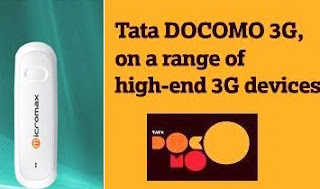
How to connect Tata Docomo GSM with Micromax Data Card
Adam Riley
05.58
Now a days there are so everyone familiar with internet and computer. Because computer and internet are used in many official, household and other works. And we can say it the tech-world. Mostly we connect internet through Broadband with LAN (local area networks), but now there are many method to connect to internet like- Via Mobile, via data card, via modems and others. So today I tell you about how to setup Micromax 3G net setter or data card with Tata docomo GSM SIM card.So let’s start to setup this.
First of all put your Tata Docomo GSM SIM card in Micromax Data card.
And activate any Tata Docomo internet GPRS pack for your Sim card. Then attach the data card with your computer. And check your networks.
After all the above just create a new Network connection in your computer. But if you don’t know about how to add a new network connection in computer then below I giving the method check this:-
1. First of all go to Control Panel by click all programs tab in computer.
2. Now click to Network Connection folder in this.
3. Then click to Create New Connection.
4. After that click to Next Button.
5. Then click to Connect to the internet point and then click to next.
6. Now click to Setup my Connection Manually and click the next.
7. Now click to Connection using a dial-up modem and click the next button.
8. Now Write ISP Name “tata docomo” and click to forward.
9. Then Write “*99#” code on Phone Number and click to Next.
10. Now fill your user Name and Password, it is not compulsory and click to next.
11. Then at last click to “Add Shortcut to this connection to my desktop” there and click to Finish.
Now a tata docomo internet connection is created. Therefore we setup the tata docomo setting with computer.
1. Now again go to control panel in your computer. And open phone and modem option.
2. And then go to dialing rules and click to new.
3. Now in the country/religion fill their India and the area code and then ok.
4. Now go to same dialog box in modem folder and select modem option and click on this.
5. Now click to properties and then click to advance tab in it.
6. Now fill the command “AT+CGDCONT=1,"IP","TATA.DOCOMO.INTERNET” in it and click to ok.
7. Now all things are complete, so click the network icon in your desktop. And click to dial.
8. Now your internet will be connected with the Tata docomo GSM Sim card.
Now enjoy using internet with great speed of Tata Docomo.
Langganan:
Postingan (Atom)